
Chapter 1: Your First Programs
For your first Java Programs we will start out nice and slow. Traditionally the first few programs a student looks at simply print text to the screen. So that is where we will start. Now for your first program:
      CODE:
        1: /* Title:  HelloWorld.java
        2:    Author: Jason Snyder    */
        3:
        4: public class HelloWorld
        5: {
        6:    //Main Method
        7:    public static void main( String[] args )
        8:    {
        9:       System.out.println( "Hello World!" );
       10:    }//End Main Method
       11: }//End Class HelloWorld
      Output:
         Hello World!
Now, we will consider this program line by line.
Lines 1 and 2:
        1: /* Title:  HelloWorld.java
        2:    Author: Jason Snyder    */
form what is called a Traditional Comment ( also called a Multiple-Line Comment ). These comments are started by /* and terminated by */ .
Now skipping ahead to line 6:
6: //Main Method
This is an example of an End-Of-Line Comment ( or Single-Line Comment ), because this comment terminates at the end of the line on which it appears. A Single-Line comment begins with // and terminates at the end of the current line.
Comments have no functionality in a program, their only purpose is to make a program easier to read. It is generally a good idea to put a traditional comment at the beginning of every progam giving the name of the program, the name of the author, and a short description of the purpose of the program.
Now, line 3 is simply a blank line. Programmers generally use blank lines and spaces to make a program easier to read. Blank lines, spaces, and tabbing form what is called white space. Most white space is ignored by the compiler and adds no functionality to a program.
Line 4:
4: public class HelloWorld
begins what is called a Class Declaration for the class HelloWorld. EVERY program in Java must have at least one user-defined class. The class keyword begins the class declaration and is immediately followed by the Class Name. You need to notice that the class name, HelloWorld, and the program name, HelloWorld.java, match. This must always be the case, any time you have a Java file that contains a public class, the name of the program must match the class name.
Programmer beware, there are certain words in Java, called Reserved Words which are reserved by Java. Reserved Words in Java are ALWAYS spelled in lower case ( and yes, Java is case sensitive ).
Java Reserved Words and Keywords |
||||
|---|---|---|---|---|
| abstract | assert | boolean | break | byte |
| case | catch | char | class | continue |
| default | do | double | else | enum |
| extends | false | final | finally | float |
| for | if | implements | import | instanceof |
| int | interface | long | native | new |
| package | private | protected | public | return |
| short | static | strictfp | super | switch |
| synchronized | this | throw | throws | transient |
| true | try | void | volatile | while |
Keywords that are no longer used (Deprecated) |
||||
| const | goto | |||
A Left Brace ( at line 6 ), {, begins what is called the Body of the class, and a Right Brace ( at line 12 ), }, ends the body of the class.
Line 7:
7: public static void main( String[] args )
is the entry point of every Java program. This is a very important line in Java, so let's break this line apart, piece by piece. First, the parentheses indicate that this is program building block called a method, here the method name is "main". The void says that this method does not return a value to the process that called it. We will go into more detail about the keywords public, static, and void later.
String[] args stores the command line arguments, these are the arguments that the user supplies at the command line when he runs the program.
The left brace on line 9 starts the body definition of the main method, which is terminated by the right brace on line 11.
Line 9:
9: System.out.println( "Hello World!" );
instructs the computer to do some task. Namely, print the message "Hello World!" to the screen. "Hello World!" is called a string or a string literal. White space in a string literal is NOT ignored by the compiler. System.out is Java's standard output object. This object allows Java applications to display strings to the console, print them out to the printer, or print them out to files. System.out.println is a method which takes any string as input, called the argument and prints it to the console. This is Java's primary way to print messages to the screen and relay important information to the user. All of line 9, including the parenthesis semicolon, is called a statement. Every statement in Java must be terminated by a semicolon, ;, character.
In Java, EVERY left brace, {, must have a corresponding right brace, }. Some programmers may find it difficult, at first, to keep corresponding braces straight. For this purpose, it is generally a good idea to place an end-of-line comment after every right brace to remind yourself which method or class body the brace terminates.
Examples of this practice are given in lines 10:
10: }//End Main Method
and 11:
11: }//End Class HelloWorld
Notice the indentation in the HelloWorld.java program. The indentation is to make the program easier to read. Remember that I said that most white space is ignored by the compiler, for this reason the following:
      CODE:
        1: public class HelloWorld{
        2: public static void main(String[] args)
        3: {System.out.println("Hello World!")}
        4: }
is a perfectly valid Java program, and the output is the same as the original HelloWorld program. However, this program is kinda hard to read, and this style of coding is generally frowned upon. So it is good programming practice to indent you code, and make use of white space.
Now that we have disected HelloWorld.java line by line, it is now time to compile and run your first program. The first thing you
need to do is make sure that you have a version of the Java SDK installed on your computer. You can go to Sun's website,
http://java.sun.com/javase/downloads/index.jsp
and download JDK 6u2. After you install the Java SDK, you will need to make sure that the bin directory of the newly installed Java
SDK is listed in your system's PATH variable. If you do not know how to change your system's PATH variable, you will need to go online
to learn how to do this.
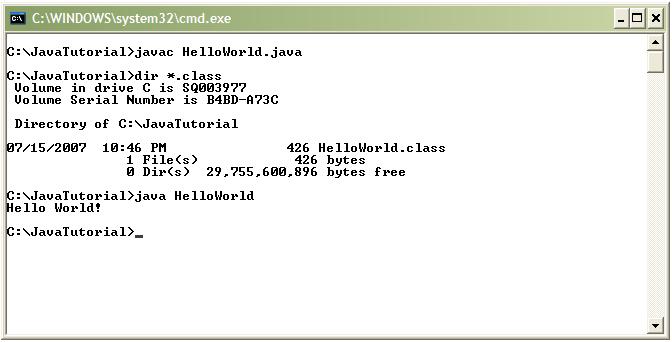
Once you have completed everything above, you are ready to compile and run your program.
Step 1: Create a directory on your C: where you will be saving your Java programs. I called mine "C:\JavaTutorial".
Step 2: Use any plain text editor, such as notepad, to type the HelloWorld.java program. You do not want to use a Word processoer, such as Microsoft Word, to type the program. Word processors store extra formatiing characters in every document, which are invisible to you but not to the compiler. Save the file as HelloWorld.java in the directory you created in Step 1.
Step 3: Go to the command prompt, and go to the directory you created in Step 1. Type the following on the command line:
C:\ JavaTutorial>javac HelloWorld.java
This will compile the HelloWorld.java prgram and create a new file called HelloWorld.class.
Step 4: Next, you need to run the program by typing:
C:\ JavaTutorial>java HelloWorld
You should see the message "Hello World!" display on the screen.
Different Ways to Display Text
So far we have only seen one way to print text to the screen, with System.out.println. Now we will discuss two new ways to display text. The first is with System.out.print, and the other is with System.out.printf. We will now demonstrate the use of System.out.print:
      CODE:
        1: /* Title:  HelloWorld2.java
        2:    Author: Jason Snyder     */
        3:
        4: public class HelloWorld2
        5: {
        6:    //Main Method
        7:    public static void main( String[] args )
        8:    {
        9:       System.out.print( "Hello " );
       10:       System.out.println( "World!" );
       11:       System.out.println( "How are you feeling today?" );
       12:    }//End Main Method
       13: }//End Class HelloWorld2
      Output:
         Hello World!
         How are you feeling today?
In this program, lines 9 and 10:
        9:       System.out.print( "Hello " );
       10:       System.out.println( "World!" );
roduce a single line of text, and line 11:
11: System.out.println( "How are you feeling today?" );
produces a new line of text directly below the old one. So what exactly is the difference between System.out.println and System.out.print? Well, to answer this question, we need a few new terms. When handling text, there are a few invisible characters that help format a document. A couple of these are the carriage return and new line characters. The carriage return tells the cursor to return to the start of the current line, and the new line character tells the cursor to move to the next line. Now, System.out.println prints the string literal given to it on the screen but then it additionally prints a newline and a carriage return. This moves the cursor to the next line, and printing would then start from there. System.out.print does not print the additional characters, so when it is done, printing will continue right where the old text stops.
Now, take a look at the following code and output:
      CODE:
        1: /* Title:  EscapeSequenceDemo.java
        2:    Author: Jason Snyder            */
        3:
        4: public class EscapeSequenceDemo
        5: {
        6:    //Main Method
        7:    public static void main( String[] args )
        8:    {
        9:       System.out.println( "This\tprogram demonstrates\nseveral" );
       10:       System.out.println( "special characters called \"escape" );
       11:       System.out.println( "sequences\"." );
       12:    }//End Main Method
       13: }//End Class EscapeSequenceDemo
      Output:
	 This	program demonstrates
         several
         special characters called "escape
         sequences".
Now, from looking at the code, you would probably expect the output to look something like:
         This\tprogram demonstrates\nseveral
         special characters called \"escape
         sequences\".
The reason for the discrepancy are the characters \n, \t, and \", are all special characters. These special characters are called escape sequences, the meaning of the escape sequences in Java is described in the table below:
Escape |
Description |
|---|---|
| \n | New line and carriage return. Position the cursor
at the start of the next line. |
| \t | Horizontal tab. Move the cursor to the next tab stop. |
| \r | Carriage return. Move the cursor to the beginning of
the current line. Does NOT move the cursor to the next line. |
| \b | Backspace. Move the cursor back one space. |
| \\ | Backslash character. Prints a backslash, \, character. |
| \' | Singe quote character. Prints a single quote, ', character. |
| \" | Double quote character. Prints a double quote, ", character. |
| \a | Audible bell. |
For the last program in this chapter, we will be looking at the System.out.printf method:
      CODE:
        1:  /* Title:  HelloWorld3.java
        2:     Author: Jason Snyder     */
        3:
        4:  public class HelloWorld3
        5:  {
        6:     //Main Method
        7:     public static void main( String[] args )
        8:     {
        9:        System.out.printf( "%s\n%s", "Hello","World!" );
       10:     }//End Main Method
       11:  }//End Class HelloWorld3
      Output:
         Hello
         World!
System.out.printf, prints formatted text to the screen. In this example the format to be used is "%s\n%s, where %s means "string". So, in words, this tells the computer to print a string, then the newline character, then print another string. The strings to be printed are placed after the format. The first %s in the format gets replaced by the first string that appears after the format, and the second %s gets replaced with the second string. Most of the output in these tutorials will be presented in this fashion. As they arise, I will give explanations of any new formats. Note, anyone who is familiar with the programming languages C or C++ should already be familiar with printf.